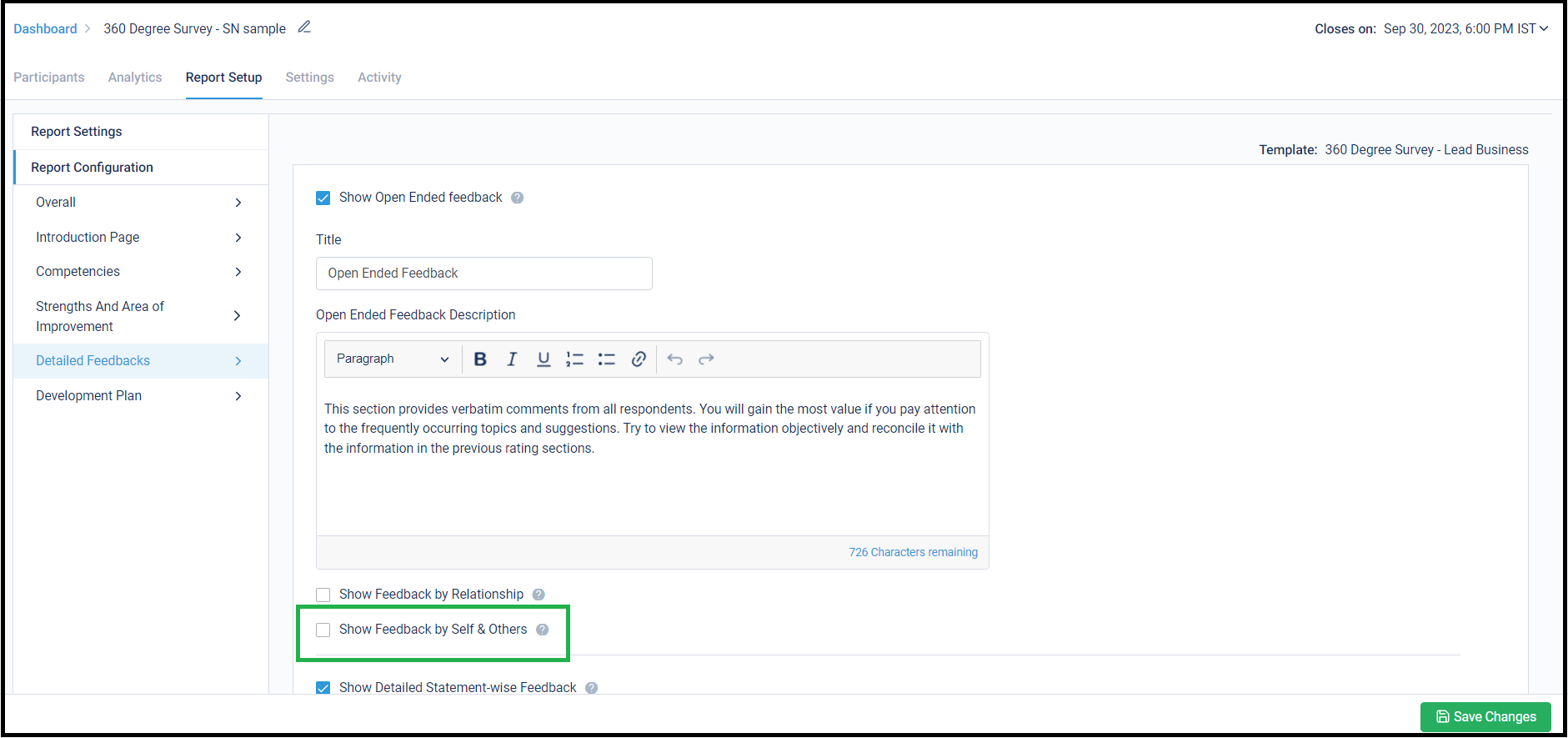
Open-ended Feedback comments can now be bifurcated by Self and Others in the individual reports. This helps our Consultants in preparing better for the debriefing sessions that they have with the Feedback Seekers.
Below is where this setting can be accessed in the Report Setup:
Stay tuned for more amazing updates coming your way!
Feedback Seekers can re-nominate their Feedback Providers after submitting them once!
Until now, Seeker could nominate their providers only once in the survey. Once these nominations were submitted, they had no option to go back to the participant list and update it.
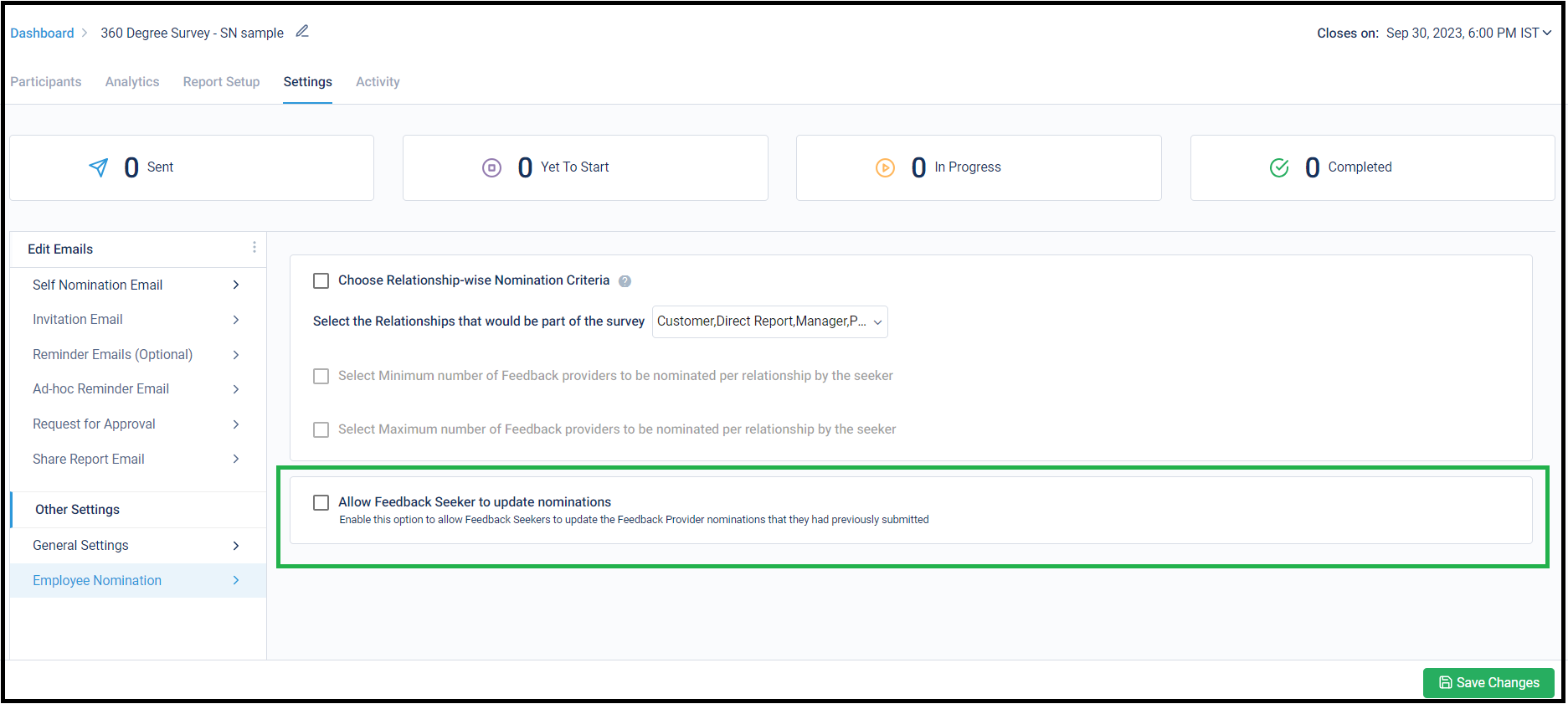
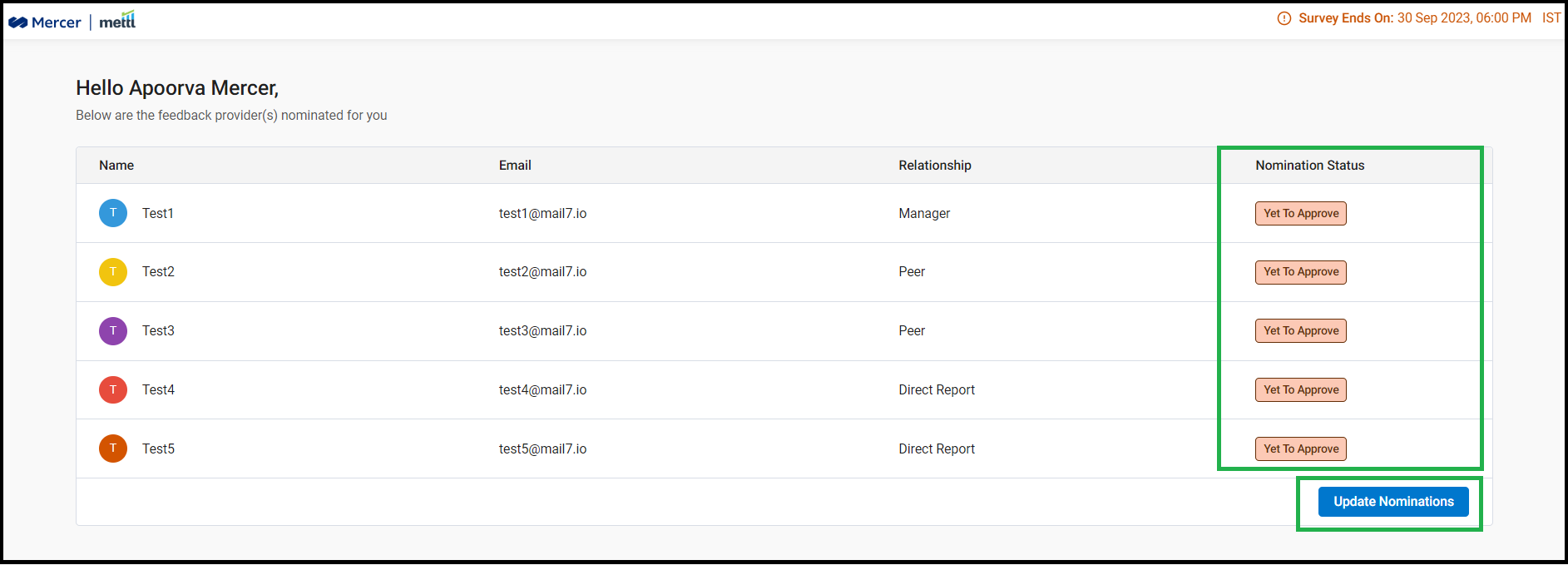
After enabling this new setting, the Seeker can re-nominate their Providers until the survey has ended. They can edit/delete already nominated Providers (those who have not started their survey yet). They can add new Providers also. We have added a new column for ‘Nomination Status’ to show the latest status for each nominated Provider.
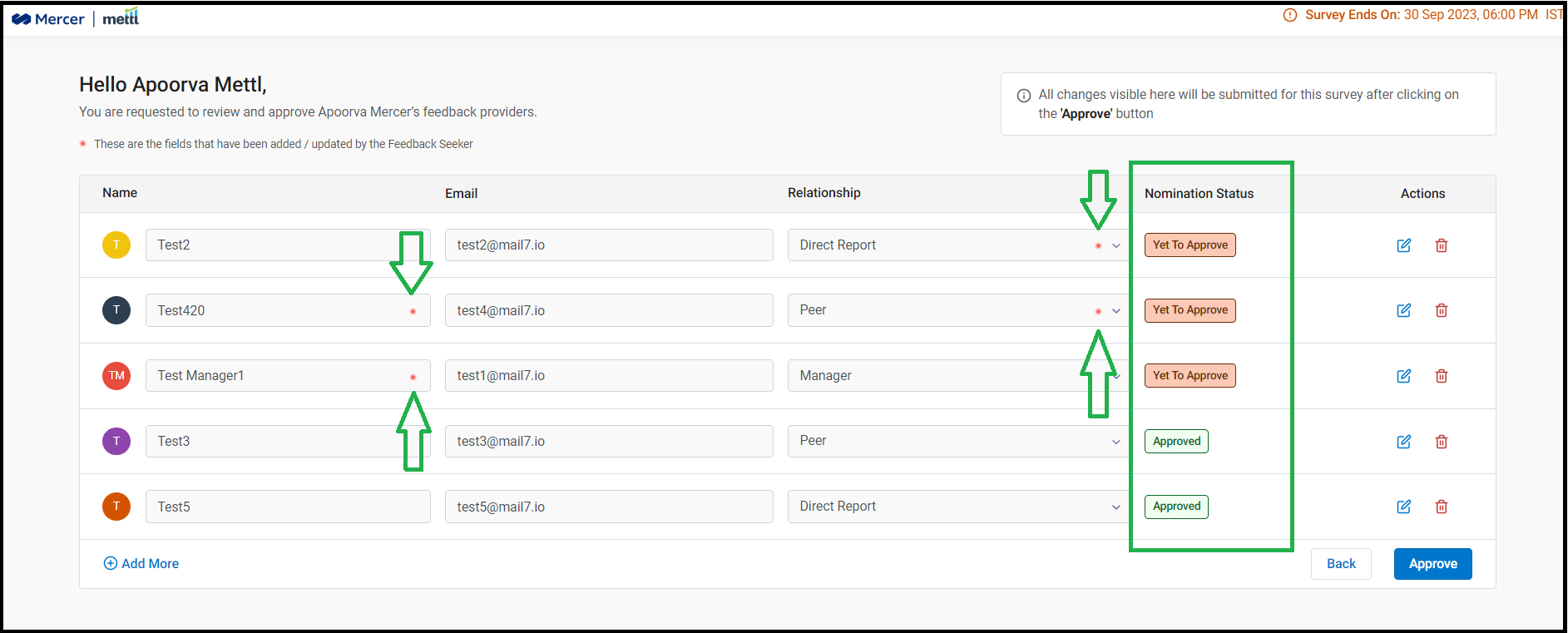
In case an Approver is added, the Approver can also approve or alter the re-nominations submitted by a Seeker until survey end date arrives. We also highlight and show the Approver what exact updates have been done by the Seeker on re-nomination. We have added the new column for ‘Nomination Status’ here also.
Below is how this setting can be enabled in Settings:
Below is where the Seeker can see the ‘Re-nomination’ option after submitting the nominations:
Below is how the screen appears to the Approver once re-nominations have been submitted by the Seeker:
Stay tuned for more amazing updates coming your way!
Now, hide reports and survey data from sub-users of the survey account!
Until now, all sub-users of a 360View account could view/download the Reports, view survey data analysis in the ‘Analytics’ tab and even download the survey data of the survey with all responses to the survey questionnaire. In order to bring control over this sensitive information, we have now created different roles to be assigned to the account’s sub-users.
By default, the Account Admin and Mettl Support Users will have all the access in the account. However, the sub-users added in the Admin’s account on Mettl will not be able to download the survey data excels for the survey.
We have also created 2 roles in the account that can be assigned to the sub-users by the account Admin or Mettl Support Users based on their contribution required to run a survey.
1) Report Viewer: They can run the survey, download reports and view the ‘Analytics’ tab; but not download survey confidential data excels.
2) Survey Manager: They can run the survey but not download reports, view the ‘Analytics’ tab or the survey data excels.
Going forward, we will be introducing more such roles as n’ when the need arises to control certain aspects of running a survey.
Below is how this setting can be enabled in Account Settings:
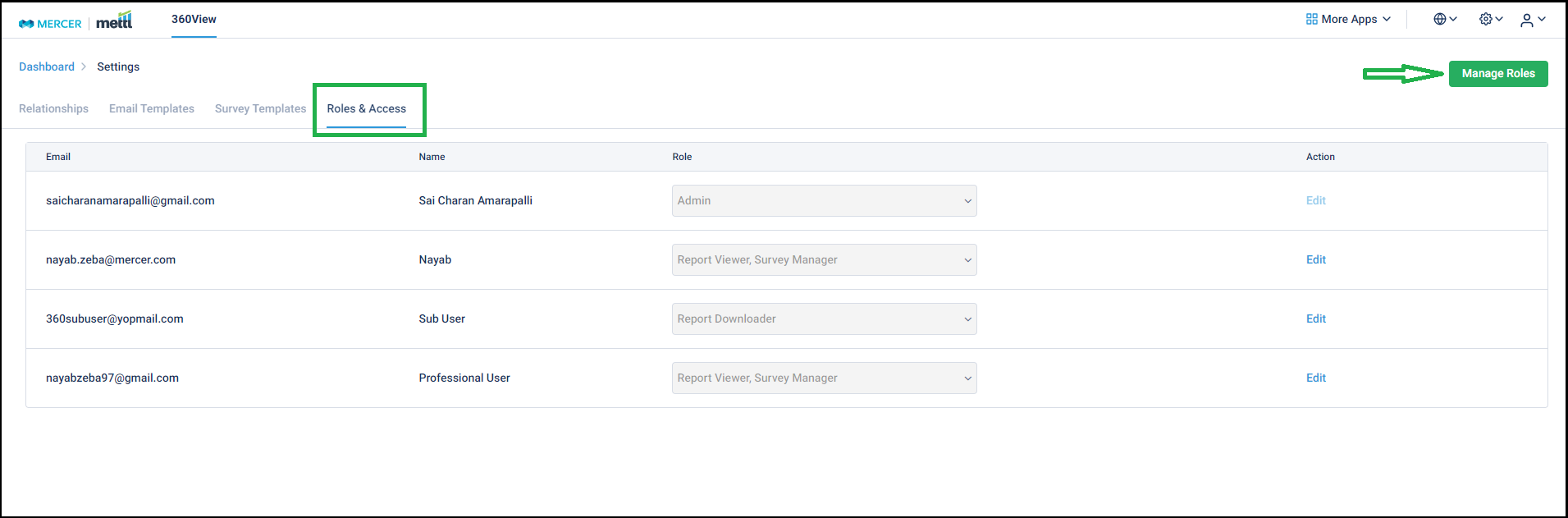
On selecting the ‘Manage Roles’ option in the screen above, various roles created in an account can be accessed.
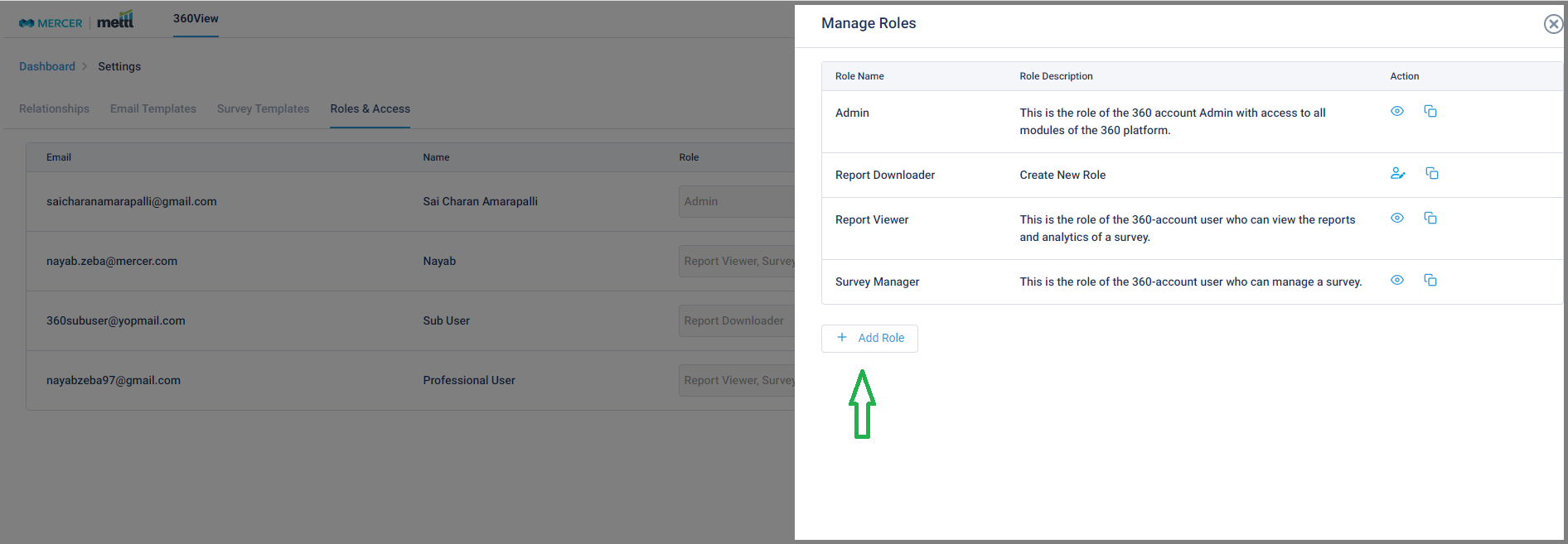
On selecting the ‘Add Role’ option in the screen above, new roles with various permissions can be configured in the account.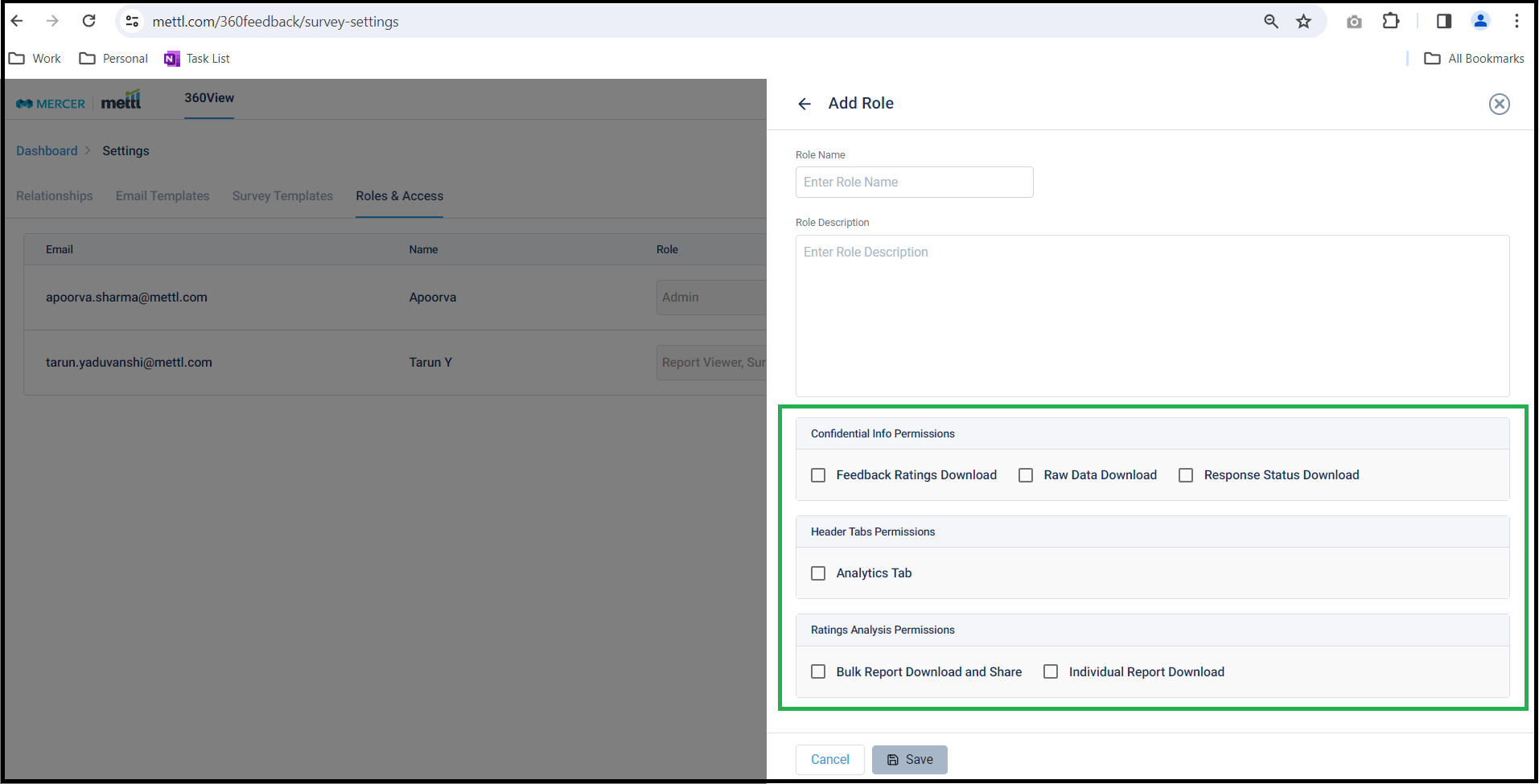
Stay tuned for more amazing updates coming your way!
We have now provided an option from where ‘Self’ name can be modified to appear differently on the respondent page and the reports in any language, like all other relationship names defined for a survey.
Below is where this setting can be accessed from, this needs to be set before launching the survey: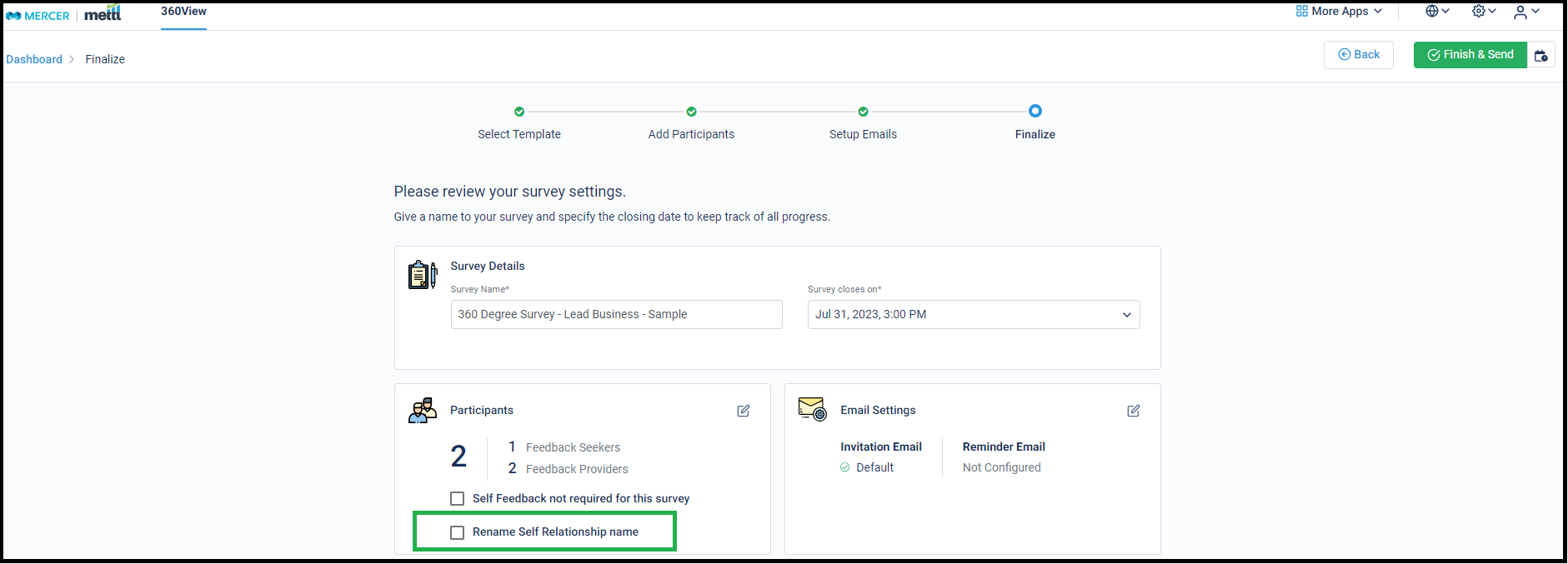
Stay tuned for more amazing updates coming your way!
Launching surveys just got easier, simply schedule them for later!
Using this option, surveys can be launched at a later date and time before the Survey end date approaches. This will particularly help our Ops and Sales team who need to launch surveys for customers at odd hours of the day/weekends.
Below is where survey scheduling setting appears, just beside the ‘Finish & Send’ button: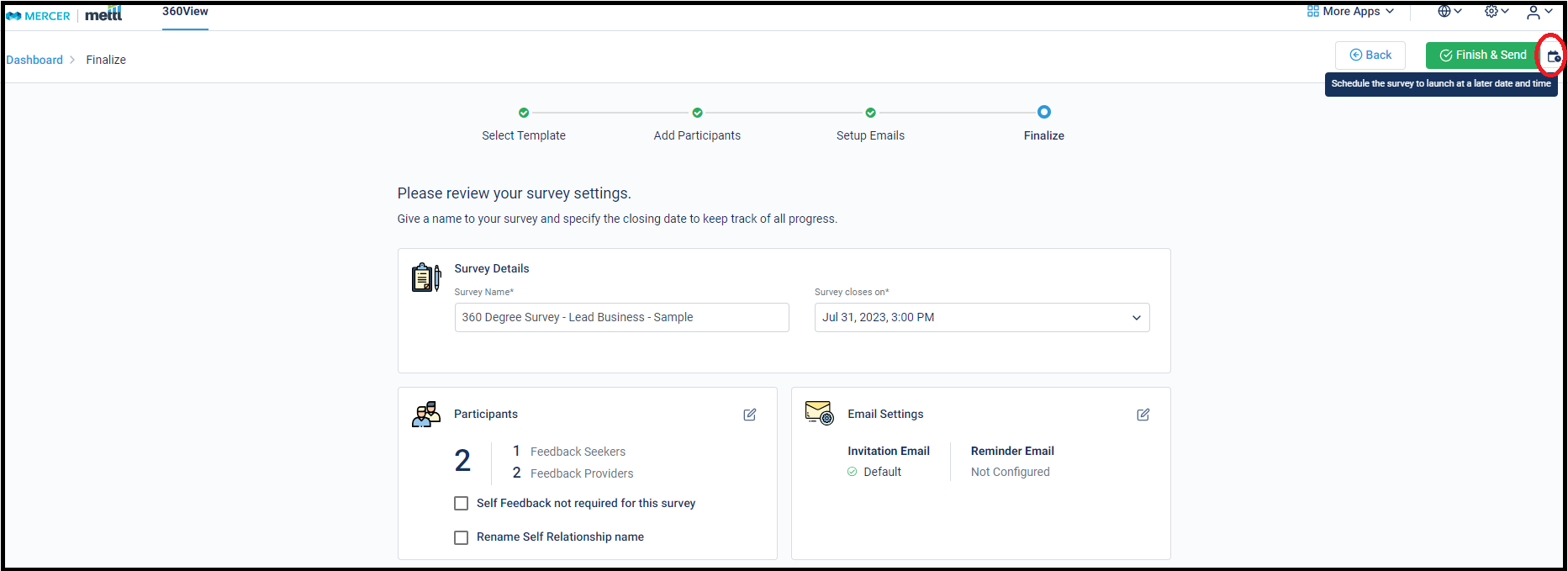
Using this calendar, the future date and time of launching the survey can be set: 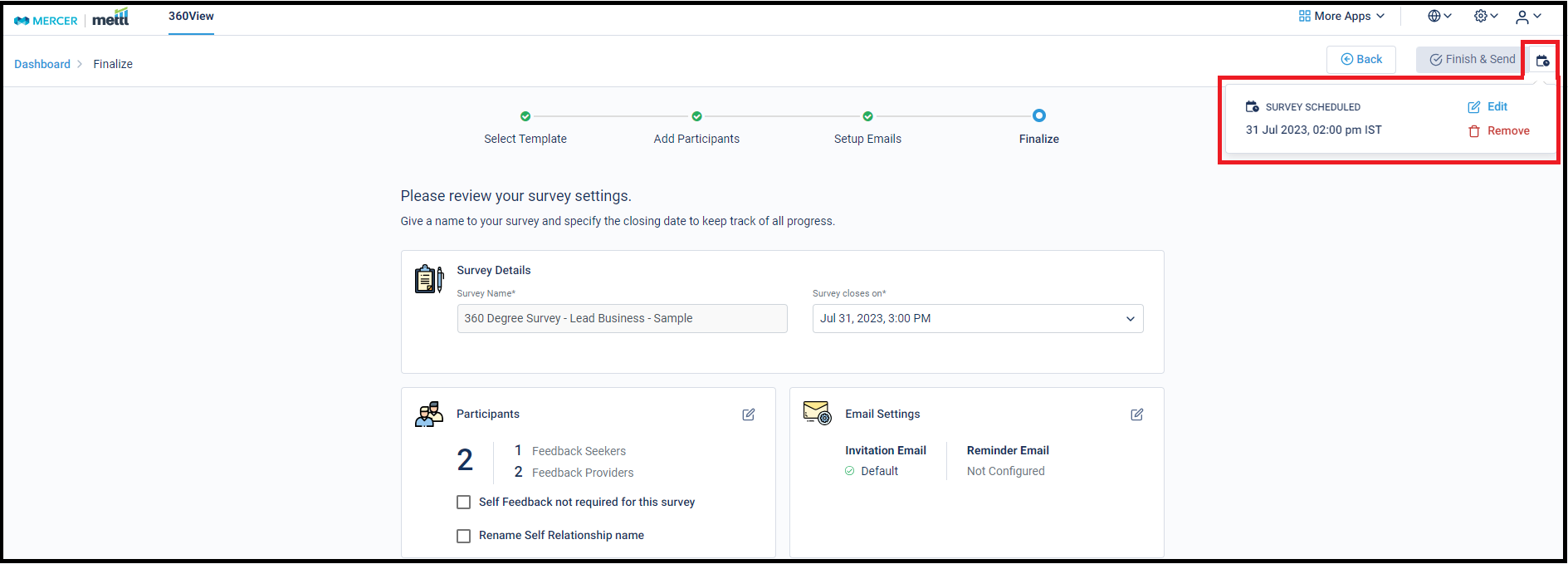
Once survey has been scheduled, immediate launch of survey gets disabled. This schedule can be edited or removed: 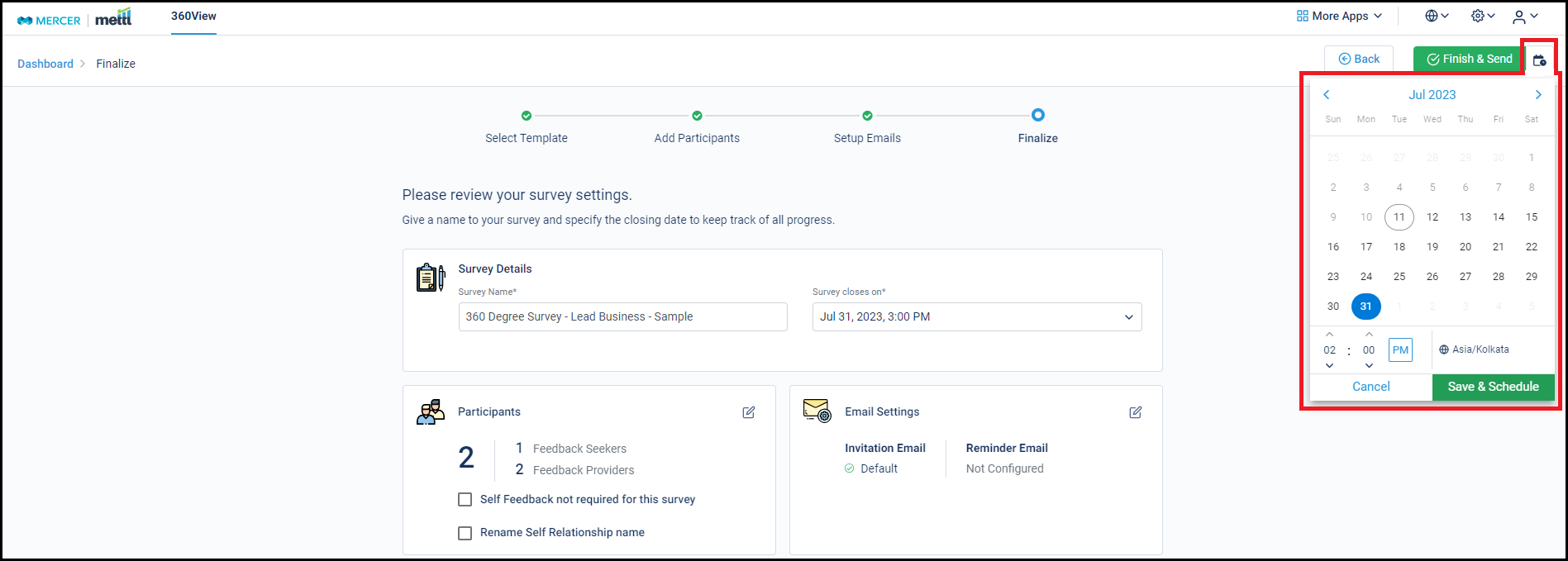
Stay tuned for more amazing updates coming your way!
Now, get a new section for Overall ratings received for all Competencies!
360View Individual report ratings combined with a few other Psychometric assessments are used to present Performance Vs Potential analysis of Individuals being assessed by these exercises. For this 9-box model, overall scores in 360View competencies are required for each individual. Some clients also want to see an absolute rating against each Employee on the competencies used in a survey.
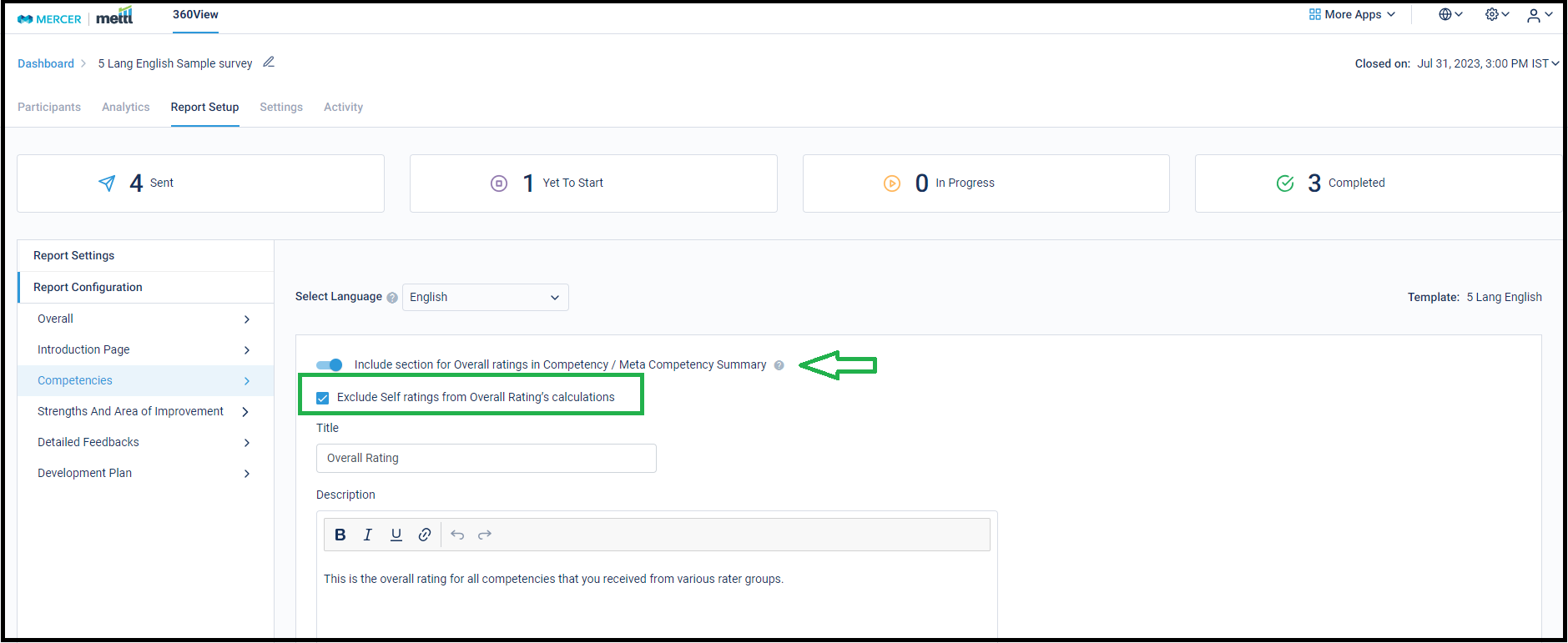
We have introduced an option to include the Overall Ratings of Feedback Seekers in each report. This rating can be seen under the Competency/Meta Competency summary section of the reports. We have also provided the capability to exclude Self-scores from just the Overall Rating provided in the report.
Below is how this setting can be enabled in Report Setup:
Below is how it will appear in the report: 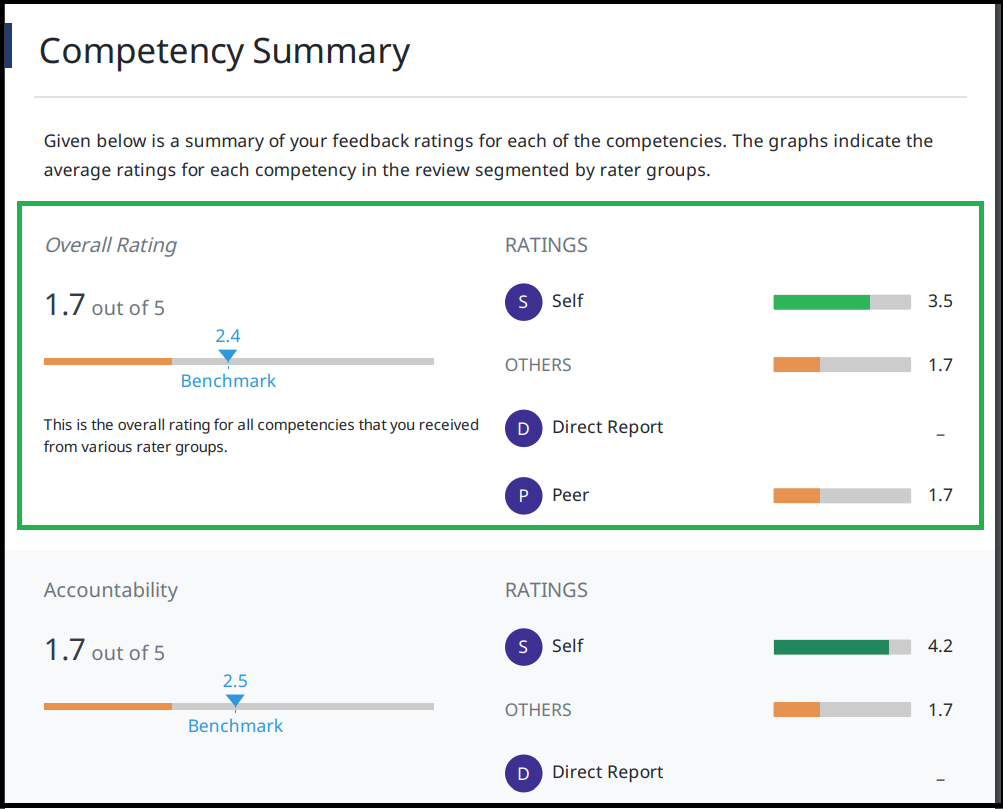
Stay tuned for more amazing updates coming your way!
We are thrilled to announce the launch of multi-lingual support for Examine. At Mercer Mettl, we believe in embracing diversity and providing an inclusive experience for all our users. With the introduction of Multi-lingual support, we are taking a giant leap towards breaking down language and cultural barriers.
The Power of Language
Language plays a vital role in effective communication and understanding. With our multi-lingual support, users can now access our product in Portuguese in addition to the existing support of English, you can now enjoy our product in the language that is most comfortable for you.
A Seamless Switch
Switching to your preferred language has never been easier. With a simple click, you can navigate through our product effortlessly in the language that speaks to you. The settings menu allows you to personalise your experience, ensuring that you feel at home while using our product, regardless of your geographical location.

Expanding Horizons
Multi-lingual support is just the beginning of our commitment to serving a global audience. We are dedicated to continuously enhancing our product to cater to the specific needs and expectations of our diverse customer base. Your feedback and suggestions are invaluable in helping us shape the future of our product.
Join Us on this Global Journey
As we strive to provide an exceptional user experience, we invite you to try out our multi-lingual support feature and let us know what you think. Together, we can build a truly global community where language and borders are no longer obstacles.
Stay tuned for more exciting updates and features coming your way.
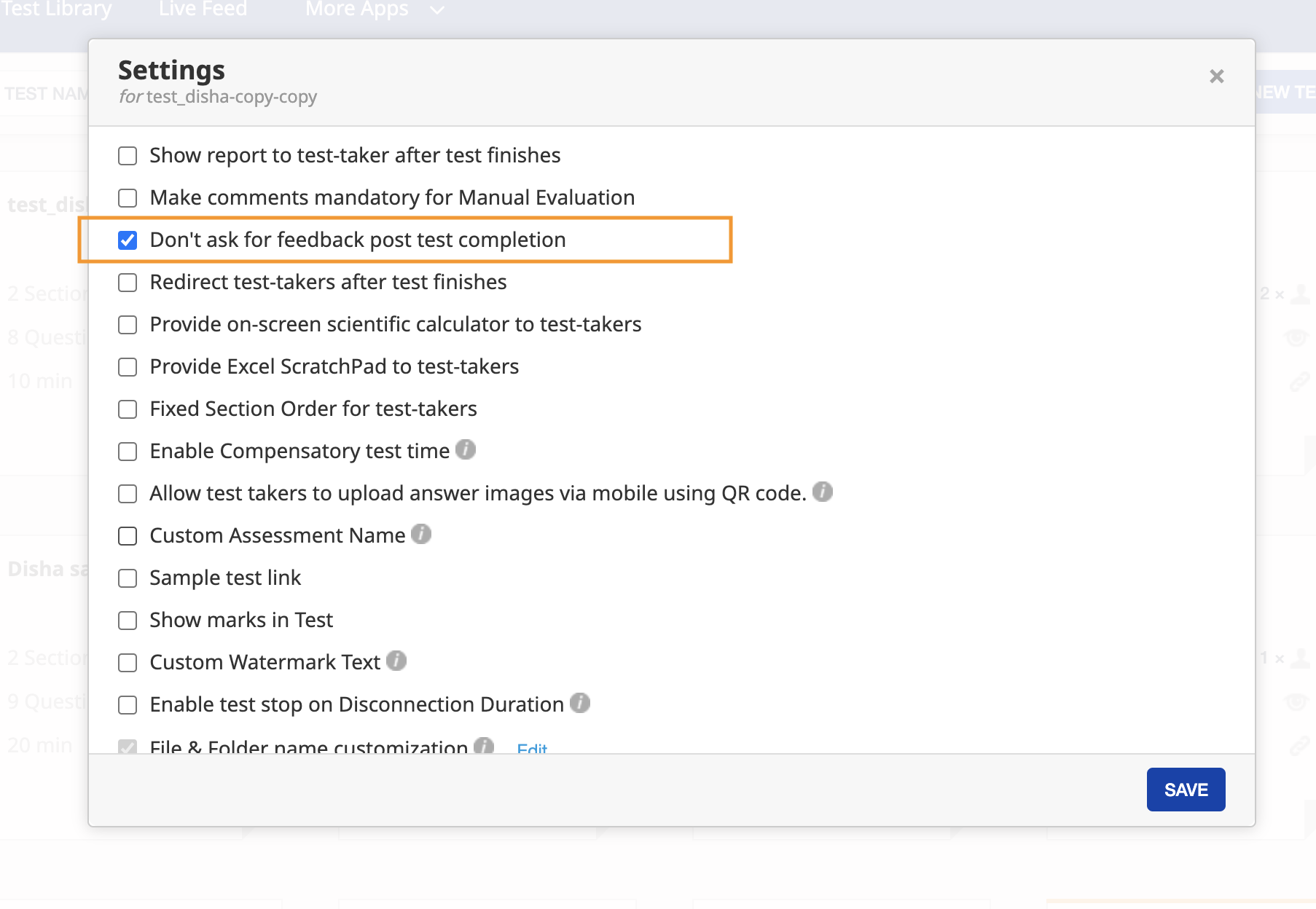
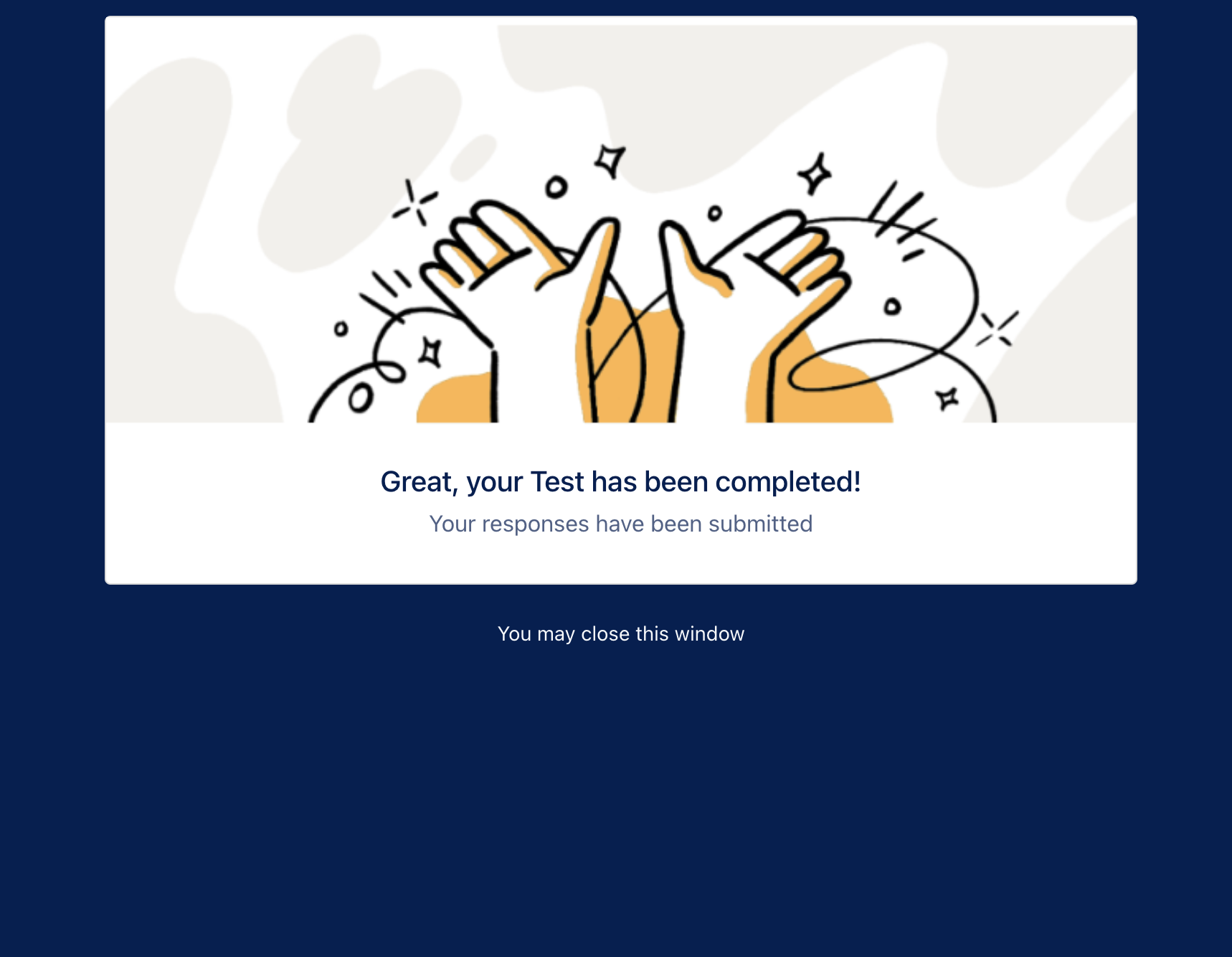
Some clients have their own integration and flow. Feedback should be given on the client’s platform itself. Sometimes they do not require test-takers to give feedback on the Mercer Mettl platform. To accomplish this, we are adding a setting at the assessment level showing “Don’t ask for feedback post-test completion.” Enabling this setting will remove the feedback widget from the test-taking experience
Setting can be enabled/Disabled from here
Test-taker screen view on feedback page
Stay tuned for more updates.
Customize File Names with Mercer Mettl’s File Name Customization Feature
Have you ever found yourself struggling to uniquely identify of multiple files downloaded from Mercer Mettl’s platform? That’s where the file name customization feature comes in handy!
This feature allows you to customize the file names of PDF files (both bulk and individual) and test-taker folders on Mercer Mettl’s Results Dashboard. You can now use candidate registration fields, which are filled by test-takers before starting the test, to create custom file names and make it easier for you to identify and manage results.
File names can be customized at both the team and test level. Here’s how it works:
Customizing File Names at the Team Level
You can easily update default file names for a specific language by changing the name in the input box provided. After you save the changes, the file names for downloaded files will be updated accordingly.
Customizing File Names at the Test Level
You can update the team level file name by changing the name in the input box provided at the test level. Once you save it, file names for downloaded files will be updated.
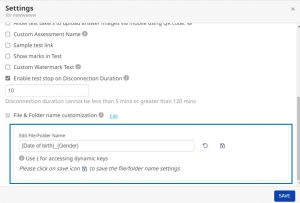
To learn more about customizing file names on Mercer Mettl’s platform, check out our detailed guide here.
Mercer Mettl’s file name customization feature is a great way to simplify your results management process and improve your productivity. Give it a try today!








 Behavioral Competencies
 Cognitive Competencies
 Coding Competencies
 Domain Competencies